

Run multiple cannabis stores in PURP
PURP brings your catalogue, team, purchasing and reports into one Admin workspace. Each store keeps its own stock and selling details, while owners can follow the business across locations without maintaining a separate operation for every branch.
PURP builds cannabis retail software. This guide follows the multi-store work supported by PURP. Screenshots contain demonstration data, not retailer results.
1. Maintain one catalogue with room for local differences
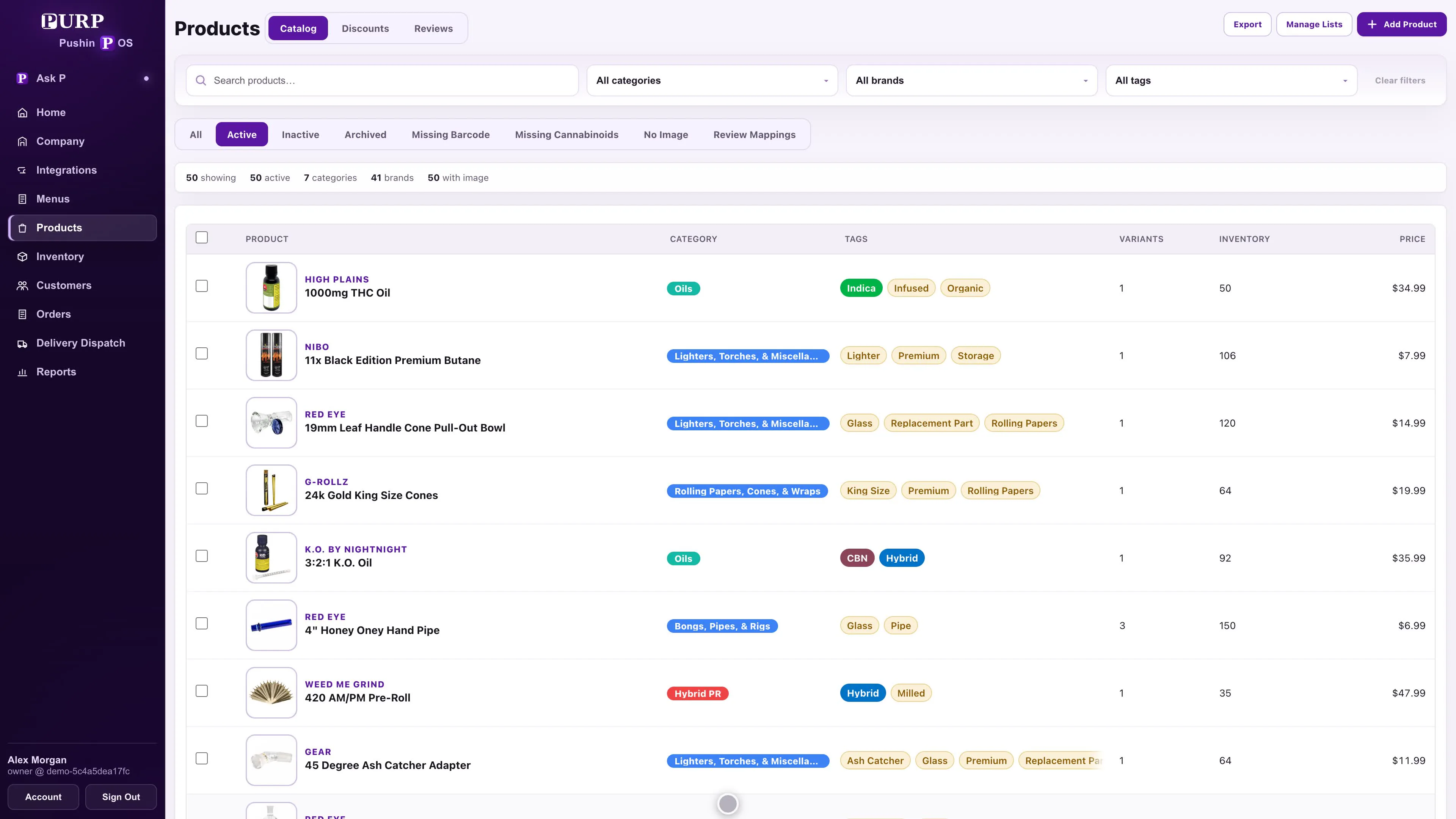
A product’s name, variants and barcode should not need to be recreated for every branch. PURP maintains those product records in the retailer’s shared catalogue. Your team can work on the same product information while keeping store-level prices, visibility and stock distinct.
That gives a buyer or product manager a central place to maintain the range, without assuming that every store carries the same items at the same price. A product can belong to the catalogue and still be unavailable at a particular location. The register uses the selected store’s selling information.
Promotions also have a company-wide or selected-location scope. A retailer can prepare a shared offer or restrict it to the stores taking part, rather than asking each counter to reproduce the deal manually. The promotions walkthrough shows the offer tools; the chosen products, dates and stores still need retailer review.
2. Manage roles and store access in the same team roster
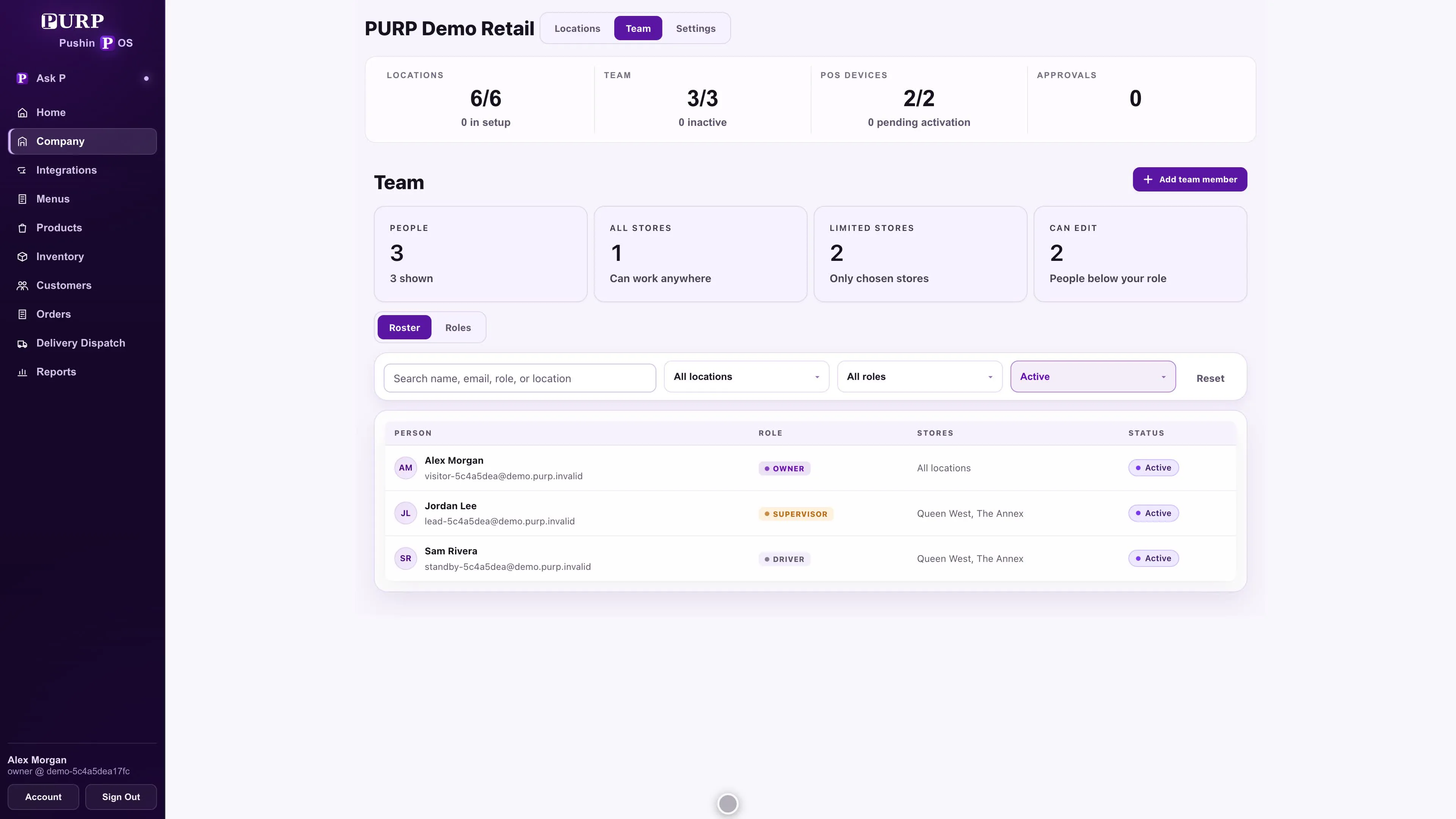
In PURP, a role describes the work an employee can do, and location access identifies the stores where they can do it. An owner can oversee several branches, a local manager can work within assigned stores, and a covering employee can be assigned the locations they need before their shift.
These distinctions continue into Admin’s product details, location lists and summaries. Restricted employees receive the records for their accessible stores. Cost visibility and editing rights remain separate permissions, so giving someone store access does not by itself grant every management action.
Admin, Delivery Dispatch and Driver App use employee accounts and company access controls. Staff PIN sign-in is for POS operations. The staff and permissions tools let the retailer manage that team centrally; the permissions guide explains what to verify for each role.
3. Review purchasing and stock movement across the stores
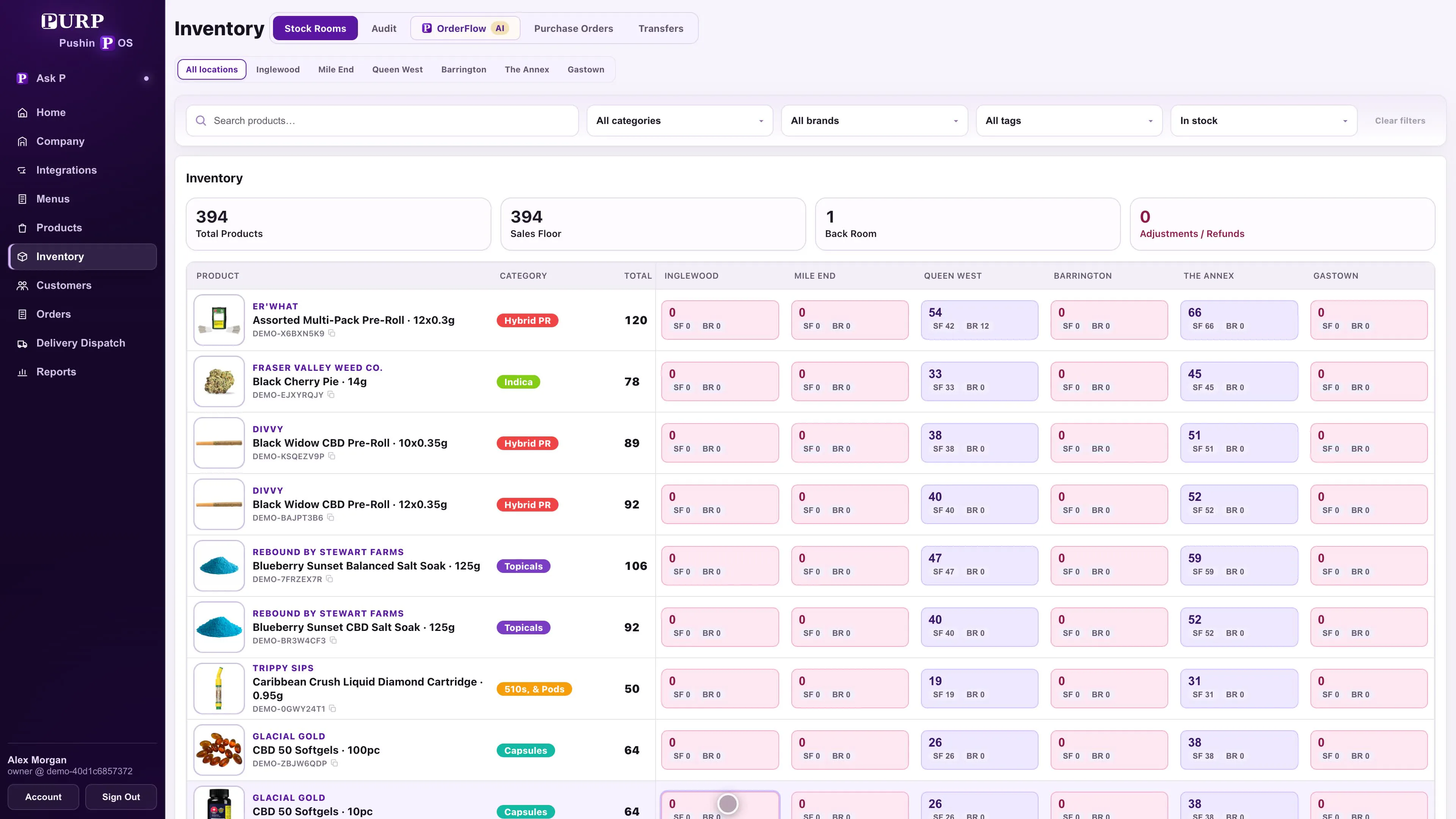
PURP’s Inventory workspace puts store quantities beside one another, then lets staff work within a selected location and its stock rooms. An owner can see where a product is held before deciding whether the next step is a supplier purchase or an appropriate inter-store transfer.
For supplier buying, the OrderFlow add-on brings sales, stock and incoming supply into reviewed recommendations. Multi-store planning keeps each location’s demand and incoming stock relevant to the purchase. It does not turn two different stores into one undifferentiated stock balance, and the buyer retains the final decision.
OrderFlow needs real store data. Its reviewed supplier file, where supported, does not create or submit a purchase order. The supplier’s document goes through Intake to the normal purchase-order and receiving workflow. Our purchasing guide follows that full sequence and explains the different planning options.
Transfers have a source store, destination, shipment and receiving record. Sending stock and receiving it are separate actions. Staff record the counted quantities and reasons for differences through the transfer workflow, preserving where the stock went. Transfer availability depends on the products, locations and required permissions; confirm the intended movement for your operation.
Supplier receipts and stock counts also belong to their actual location. The inventory checklist goes deeper into receiving discrepancies and the resulting history.
4. See the whole business, then follow a store’s numbers
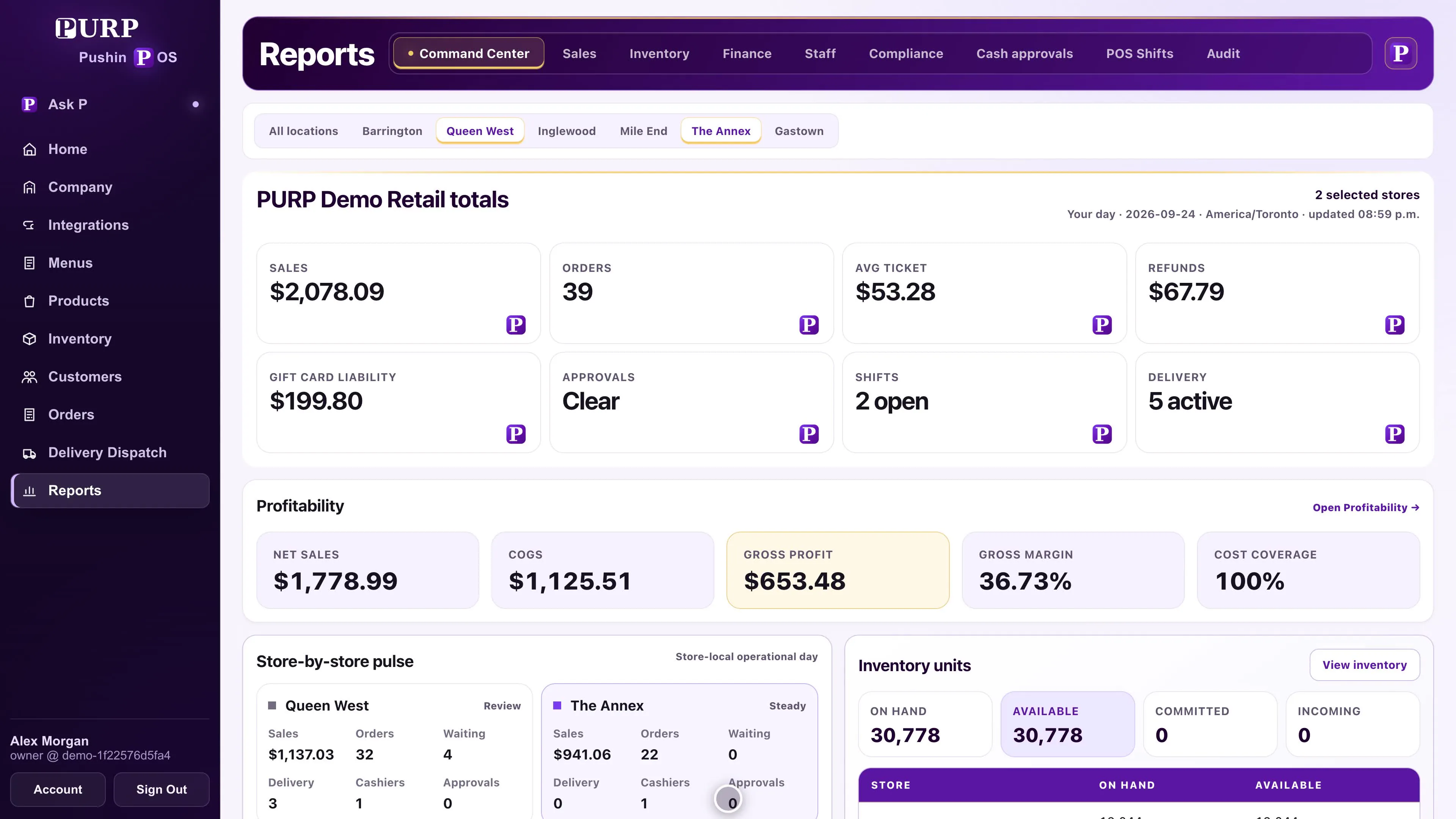
PURP Reports Command Center puts retail totals, profitability, store-by-store activity and inventory information in one workspace. Select the locations you want to review, then narrow the view when a store needs attention. That connects the owner’s business overview with the branch responsible for the activity.
The reporting tools go beyond a combined sales total. Sales reports can be broken down by store, brand, product, staff or hour, with exports for the selected view. Inventory analysis provides another way to examine the stock behind those sales. Use the same measure and period when comparing locations, and keep the displayed time basis in view.
Profit figures also need their cost coverage, and money values need a known currency. PURP’s reporting preserves those distinctions; mixed or unknown currencies are not a basis for claiming a converted group total. The reporting walkthrough shows the actual screens, while the reports guide explains the checks behind a useful weekly review.
5. Publish a Website for the store your customer visits
The same store distinction matters online. PURP Website connects the retailer’s Company brand and product catalogue with store-specific publication. In Studio, staff select a store, review its Website and publish the intended design there. The public Website entry connects visitors with the retailer’s published locations.
That keeps the online store connected to the retail records maintained in Admin. The customer should arrive at the intended location’s offering, rather than a generic product list that implies every branch has the same stock.
Native Website cart, checkout and online payment are currently unavailable. Plan any configured order integration separately, then follow the selected store through to the staff handover. The ecommerce guide covers that evaluation. Website is a separate PURP+ product; additional designs and distinct live looks for stores depend on the More designs option. Native Retailer App publication is not currently available.
6. Bring the next store into an established way of working
Opening another location starts with the shared catalogue, team roles and company setup already maintained in PURP. The local work is still specific: the address and operating settings, assigned employees, starting stock, register hardware and the store’s public presentation.
Rehearse a short connected sequence before opening: a permitted employee signs in, finds the intended product, completes a test sale on the planned hardware, and follows it into the correct store’s report. Separately rehearse a supplier receipt, a transfer where appropriate and an online handover if included. This gives each team a concrete routine for the work that crosses locations.
- Keep shared product information central, with intentional store differences recorded.
- Assign roles and store access before staff need them.
- Review purchases and movements against the destination’s real stock.
- Use a consistent reporting measure, period and time basis.
- Confirm the new address’s operating requirements and supported devices.
- Check the correct location’s Website and any configured ordering handover.
Plan the opening with your team
Use the hardware guide for changed devices and the switching checklist for data transfer and cutover. Bring your locations and required workflows to a conversation with PURP; current pricing and the full cost guide help define the software and services in your quote.