

Build your cannabis retail website in PURP
PURP Website brings the website builder, product catalogue and store publication into the retail system your team already uses. Here is what your team can design, what comes from the store’s product information and how to evaluate the order operation alongside it. The current PURP Website supports browsing and customer accounts; native shopper cart, checkout and online payment are not available.
PURP builds cannabis retail software. This guide explains PURP Website’s current tools, connected order workflows and the capabilities to confirm before an ecommerce launch.
1. Build on the product catalogue your team maintains
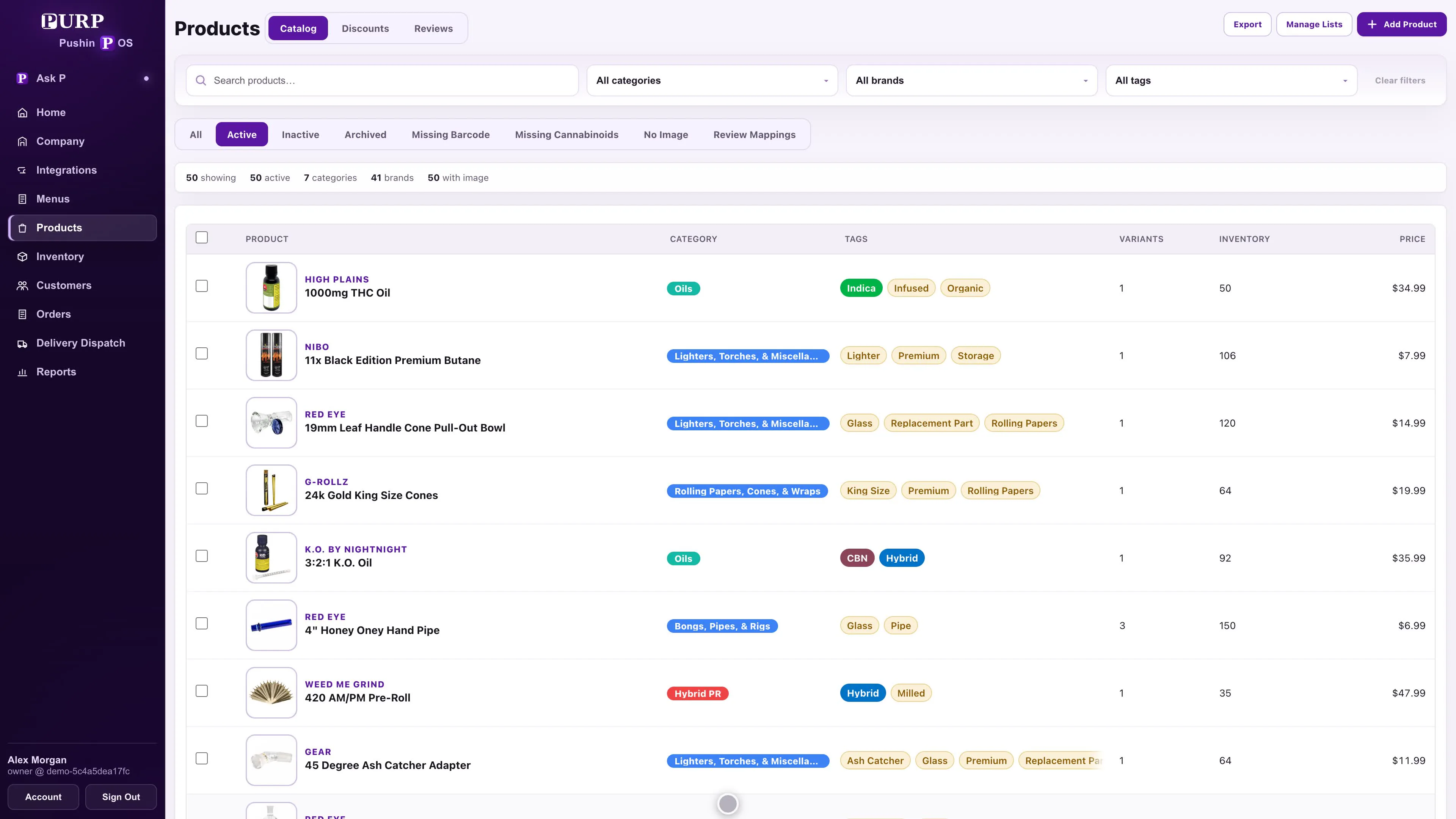
PURP Website uses the retailer’s existing product catalogue. Product names, variants, images and selling information have a home in PURP; your online team does not need to create a second product identity just to put the item on a page.
Shoppers can browse categories, search the published store catalogue and open a variant’s product page. Search supports category and brand refinement. For the retailer, this connects product discovery to the actual store’s offering rather than a separate editorial list someone must keep in step.
The Website’s product presentation also draws on PURP’s existing price and promotion information. Supported sale prices, compare-at prices and badges come from those shared retail settings. A feature banner is different: it is page content your team authors to draw attention to a range or offer. Editing the banner does not create a discount.
Try this in a demo: find a familiar product in Admin, check its variants and images, then browse to it on the published store website. Review an applicable promotion in both places. The useful test is whether the customer can recognise the exact package and understand its current offer.
2. Share the brand while keeping each store’s offering distinct
Website publication is tied to locations. In Studio, choose the store, see its publication status and open its website. The same company can keep a consistent brand while presenting the products and availability appropriate to the selected store.
A shared catalogue does not make stock interchangeable between branches. Compare one product at two stores and inspect the public result for each. PURP’s public product views use location-specific selling information; they do not expose your private stock quantities to the shopper.
For a chain, decide which design and content can be shared and which store details need individual review. Use the multi-location guide for the stock, employee access and reporting work behind that decision.
3. Build the pages, then preview what customers will see
PURP’s Website builder lives in Studio. Start with a look, work through the page’s section outline and select the content you want to change. The builder brings the page, its preview and its settings into one editing workspace.
Make the site useful to your customers
Edit the announcement bar, header, navigation and footer, then add pages for the information your customers need. Page titles, paths and search descriptions are editable. Sections can carry product selections, text, images, feature banners and FAQ content. Links can lead to another site page, a catalogue category, the store chooser or the account area when available.
For example, create a collection-information page, link it from the navigation and add an announcement pointing customers to it. On a product-led page, use a feature banner to introduce a range and link into its catalogue category. These are content changes the retail team can review in the builder.
Give the website your own look
The Website follows the Company brand, including the logo, colours and fonts. Design settings let you refine the site’s colour schemes, page width, spacing, button shape and corners. Individual sections can use their own colour scheme and spacing. Your brand can carry through the site while a featured range gets a distinct section treatment.
Check devices and keep draft work separate
Switch between Desktop, Tablet and Phone previews to inspect the layout and line breaks at each device size. Preview the selected page and store, save the draft, then publish deliberately. Saving a draft does not change the public website.
Studio shows the saved design, its last-saved time and where it is live. Published revision history lets an authorised employee restore an earlier version into the draft; the current website keeps serving until that draft is published again. That gives a team room to prepare and review a change before customers see it.
Website includes one design without More designs. The add-on requires Website and enables additional designs, different live looks across stores and scheduled changes. It is useful when a retailer needs to prepare another design without replacing the one already in use.
4. Separate customer accounts from the order-taking setup
Where customer accounts are configured, the Website provides sign-in and customer profile work, including the supported contact and address fields. That is useful for maintaining the customer’s own details. The current PURP Website does not provide a native shopper cart, checkout or online payment. Its account area also does not show order history, wallet balances or reward redemption. Confirm the order-taking and payment connection required for your business before planning around online purchases.
PURP’s Order Hub handles the store’s order work. Orders from a configured Shopify connection enter PURP through its existing order integration. Employees can review the order, its product mapping, payment state and fulfilment work in the same retail system. That connected order entry is separate from PURP Website’s builder and customer account. The team validates the products and completes the required preparation before advancing the order to Ready.
For pickup, follow preparation through to customer handoff. For delivery, a ready order can pass to Delivery Dispatch, where the team assigns routes and drivers. The Driver app carries the delivery work and outcome back into that workflow. Route assignment alone does not mean the order has left the store.
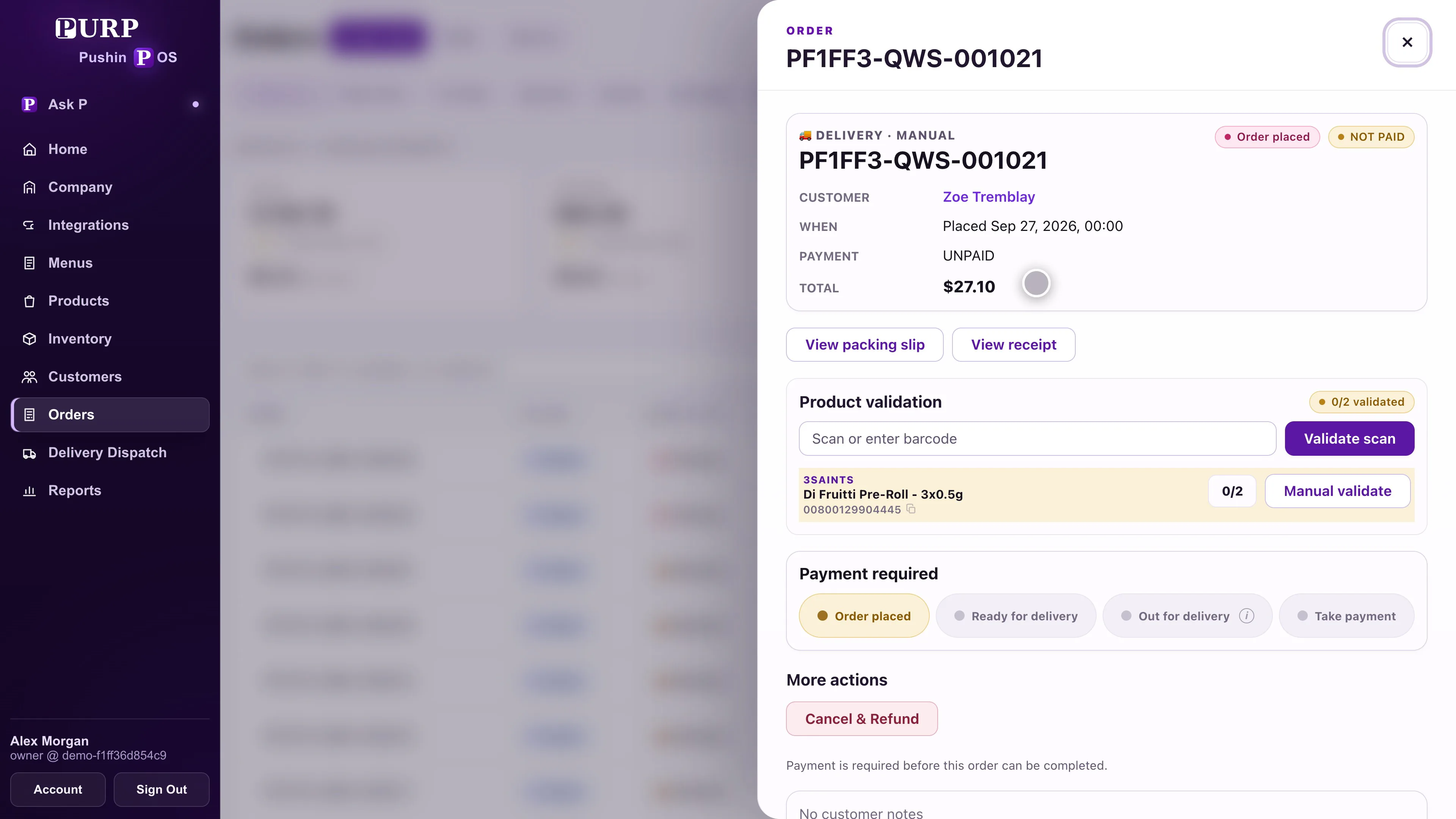
Delivery Dispatch is a separate PURP+ product. Available fulfilment services, delivery areas, employee access and payment methods depend on the retailer’s configured setup and market. Ask for the exact connection you intend to use to be demonstrated from order placement through preparation and payment; the Website builder alone does not establish that connection.
5. Choose the launch scope your team can operate
Start with the pages, stores and product ranges you intend to publish. Assign someone to review images, descriptions, navigation, store details and customer support information. Inspect the public pages on a phone after publication, including category and product links.
The Website’s age gate has editable wording and appearance, with the minimum age coming from the store’s jurisdiction settings. Review the required information and purchase checks for your own market as part of launch preparation; a website age question does not establish every requirement for a sale or delivery.
If a branded native app is on your list, Retailer App setup uses the Website’s content and brand. Native app building and publication are currently unavailable. Treat that separately from a Website launch.
Include the Website, any additional designs, intended commerce connections and delivery operation in your scope before comparing costs. Use current PURP pricing and the POS cost guide. For the supplier and stock work behind what customers can browse, see purchasing and replenishment.
6. Ask to see these PURP workflows
- Find a product in Admin, browse its published store category and open the exact variant.
- Inspect a supported promotion’s product presentation and distinguish it from an authored banner.
- Edit a page and navigation link, then compare Desktop, Tablet and Phone previews.
- Save a draft, reopen it and publish it for the intended store.
- Compare the same product at two stores with different availability.
- Review the supported customer account and separately demonstrate the proposed order-taking and payment connection.
- Follow a supported order through product validation and pickup or delivery handoff in Order Hub.
Plan the walkthrough around your stores
Bring your current website, store locations and required purchase journey when you talk to PURP. The aim is to leave knowing which work your team can manage in Studio, which retail information it shares and which connections need to be confirmed for launch.